
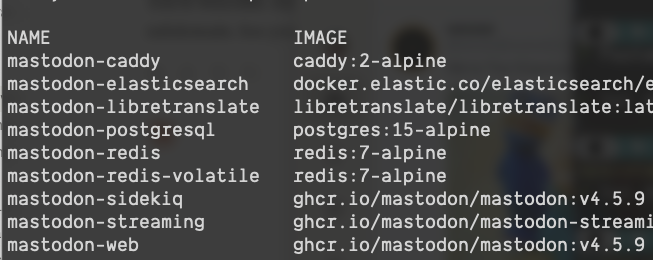
I found myself needing a Mastodon server that I could manage for testing on a project I’m working on. I found a walkthrough guide for the setup that was pretty close to my situation, but not quite, and I found myelf a little stumped at certain points when things weren’t working out quite right.
I have been experimenting with Claude a little recently, as a coding assistant, so I asked it to revise the instructions for my specific needs (an old Mac Pro Trashcan running docker on Ubuntu 22.04 LTS, and a Synology NAS as proxy in front), since this kind of tech setup seemed to be in its wheelhouse. What resulted, after some trial and error, is a set of instructions that I refined, worked well, and I thought might be useful for others.
The full installation instructions are well tested by myself, and you can very much trust those. There’s a section at the end called "Beyond the install" where I asked for suggestions on hosting tips, and those are Claude’s opinions, not mine, but seem like plausiblly decent advice. Enjoy!
This is a revised version of the CrownCloud guide adapted for a Docker host that:
- Runs other Docker Compose projects alongside Mastodon (so containers are explicitly named with a
mastodon-prefix to avoid collisions) - Sits behind a reverse proxy running on a separate Synology NAS (so the nginx + Let’s Encrypt sections of the original guide are skipped)
- Is managed with
docker composedirectly rather than a systemd wrapper unit
If you haven’t read the original guide, this document is self-contained — you don’t need to cross-reference.
A note on running commands as root
The commands below are written without sudo prefixes, matching the convention of most server walkthroughs. The simplest way to follow along is to drop into a root shell for the duration of the install:
sudo -iEverything below then works as-written. If you prefer to stay as your regular user and prefix individual commands with sudo, that’s fine too, but watch for one gotcha: commands that pipe into a root-owned file won’t work with a naive sudo prefix. For example:
# This FAILS — the shell does the redirect as your user, before sudo runssudo echo "vm.max_map_count=262144" > /etc/sysctl.d/90-max_map_count.conf# This works — tee runs under sudo and can write the fileecho "vm.max_map_count=262144" | sudo tee /etc/sysctl.d/90-max_map_count.confThe commands in this guide already use the | sudo tee pattern where needed, so they’ll work whether you’re root or prefixing with sudo.
Separately, once Docker is installed you can add yourself to the docker group to run docker and docker compose commands without sudo:
sudo usermod -aG docker $USER# then log out and back in, or run `newgrp docker` to activate in your current shellNote that membership in the docker group is effectively equivalent to root access on the host (a user in that group can mount the host filesystem into a container), so only do this on machines where you’re comfortable with that tradeoff.
Prerequisites
- Ubuntu 22.04 with root or sudo access
- At least 2 CPU cores and 4 GB of RAM (2 GB works but is tight once Elasticsearch is running; skip Elasticsearch below if you’re constrained)
- A domain with a DNS record pointed at the Synology’s WAN address (or at a dynamic DNS hostname), and TLS set up on the Synology reverse proxy to serve that domain on HTTPS
- An SMTP provider for outbound email (Amazon SES, Mailgun, Sendgrid, Postmark, etc.) — Mastodon needs this for account confirmation and password resets
- The Synology’s LAN IP, which we’ll use for firewall rules and the trusted-proxy list — referred to below as
<synology-lan-ip> - The domain Mastodon will be served at — referred to below as
mastodon.example.com
Update the system
apt update && apt upgrade -yapt install -y wget curl nano software-properties-common dirmngr apt-transport-https \ gnupg gnupg2 ca-certificates lsb-release ubuntu-keyring unzipConfigure the firewall
Since this host is not directly serving the public — the Synology is — UFW only needs to allow SSH plus the port that the Synology will proxy through to. The Caddy sidecar container on this host (configured later) listens on port 13119 and fans out to Mastodon’s web and streaming containers over the internal Docker network, so that’s the only port that needs to be reachable externally.
ufw allow OpenSSHufw allow from <synology-lan-ip> to any port 13119 proto tcpufw enableufw statusInstall Docker and Docker Compose
Ubuntu 22.04’s repository Docker is outdated; use Docker’s official repo.
install -m 0755 -d /etc/apt/keyringscurl -fsSL https://download.docker.com/linux/ubuntu/gpg | \ gpg --dearmor -o /etc/apt/keyrings/docker.gpgchmod a+r /etc/apt/keyrings/docker.gpgecho "deb [arch=$(dpkg --print-architecture) signed-by=/etc/apt/keyrings/docker.gpg] \ https://download.docker.com/linux/ubuntu $(lsb_release -cs) stable" | \ tee /etc/apt/sources.list.d/docker.list > /dev/nullapt updateapt install -y docker-ce docker-ce-cli containerd.io docker-buildx-plugin docker-compose-pluginVerify:
docker --versiondocker compose versionKernel tuning for Elasticsearch
Elasticsearch needs a higher vm.max_map_count than Ubuntu’s default. Even if you decide to skip Elasticsearch initially, setting this now costs nothing.
echo "vm.max_map_count=262144" | tee /etc/sysctl.d/90-max_map_count.confsysctl --load /etc/sysctl.d/90-max_map_count.confCreate directories and set ownership
mkdir -p /opt/mastodon/database/{postgresql,pgbackups,redis,elasticsearch}mkdir -p /opt/mastodon/web/{public,system}# UIDs match the default users inside each imagechown 991:991 /opt/mastodon/web/{public,system} # mastodon userchown 1000 /opt/mastodon/database/elasticsearch # elasticsearch userchown 70:70 /opt/mastodon/database/pgbackups # postgres usercd /opt/mastodonCreate the docker-compose.yml
Pin a specific Mastodon version
Check https://github.com/mastodon/mastodon/releases for the current stable release and substitute it for v4.5.9 below. Never use :latest in production.
Note
The tootsuite/mastodon image on Docker Hub is deprecated. Official images now live on GitHub Container Registry at ghcr.io/mastodon/mastodon (web, sidekiq, shell) and ghcr.io/mastodon/mastodon-streaming (streaming, which became a separate, smaller image in v4.2).
Create /opt/mastodon/docker-compose.yml:
name: mastodon# ================================================================# Shared environment for the Mastodon application containers.# Referenced via YAML anchor (*mastodon-app-env) on web, streaming,# sidekiq, and shell services below.## Values like ${DB_PASS} come from the .env file in this directory,# which Docker Compose reads automatically for variable substitution.# Values that never change between deployments (DB_HOST, ES_USER,# etc.) are hard-coded here rather than cluttering .env.# ================================================================x-mastodon-app-env: &mastodon-app-env # Runtime RAILS_ENV: production NODE_ENV: production DEFAULT_LOCALE: en SINGLE_USER_MODE: "false" # Rails must serve its own static assets — no nginx sits in front. # Without this, /packs/*, /emoji/*, sw.js all 404. RAILS_SERVE_STATIC_FILES: "true" # Public domain (permanent — federation cannot survive a change). LOCAL_DOMAIN: ${LOCAL_DOMAIN} # Trust the Synology and Docker LAN for X-Forwarded-* headers. TRUSTED_PROXY_IP: ${TRUSTED_PROXY_IP} # Concurrency WEB_CONCURRENCY: "2" MAX_THREADS: "5" # Retention (seconds) IP_RETENTION_PERIOD: "2592000" SESSION_RETENTION_PERIOD: "2592000" # Database — DB_PASS is shared with the postgresql service below, # so both sides of the connection use the same value automatically. DB_HOST: postgresql DB_PORT: "5432" DB_USER: mastodon DB_NAME: mastodon_production DB_PASS: ${DB_PASS} # Redis REDIS_HOST: redis REDIS_PORT: "6379" CACHE_REDIS_HOST: redis-volatile CACHE_REDIS_PORT: "6379" # Elasticsearch — same pattern: ES_PASS feeds both the ES server # and Mastodon's client config. ES_ENABLED: "true" ES_HOST: elasticsearch ES_PORT: "9200" ES_USER: elastic ES_PASS: ${ES_PASS} # LibreTranslate LIBRE_TRANSLATE_ENDPOINT: http://libretranslate:5000 # SMTP SMTP_SERVER: ${SMTP_SERVER} SMTP_PORT: ${SMTP_PORT} SMTP_LOGIN: ${SMTP_LOGIN} SMTP_PASSWORD: ${SMTP_PASSWORD} SMTP_FROM_ADDRESS: ${SMTP_FROM_ADDRESS} # App secrets SECRET_KEY_BASE: ${SECRET_KEY_BASE} OTP_SECRET: ${OTP_SECRET} VAPID_PRIVATE_KEY: ${VAPID_PRIVATE_KEY} VAPID_PUBLIC_KEY: ${VAPID_PUBLIC_KEY} # ActiveRecord encryption (encrypts sensitive fields at rest). # Required since Mastodon 4.3+. Do NOT rotate these once set — you # will lose the ability to decrypt existing data. ACTIVE_RECORD_ENCRYPTION_PRIMARY_KEY: ${ACTIVE_RECORD_ENCRYPTION_PRIMARY_KEY} ACTIVE_RECORD_ENCRYPTION_DETERMINISTIC_KEY: ${ACTIVE_RECORD_ENCRYPTION_DETERMINISTIC_KEY} ACTIVE_RECORD_ENCRYPTION_KEY_DERIVATION_SALT: ${ACTIVE_RECORD_ENCRYPTION_KEY_DERIVATION_SALT}services: postgresql: image: postgres:15-alpine container_name: mastodon-postgresql restart: unless-stopped environment: # Note: POSTGRES_DB is deliberately NOT set here. If it were, # Postgres would auto-create an empty database on first boot, # and `rake db:setup` would then fail with "database already # exists" because it couldn't distinguish "empty shell" from # "real data." Letting Rails create the DB from scratch avoids # this. Postgres will create a default `mastodon` database # matching POSTGRES_USER, which Mastodon ignores. POSTGRES_USER: mastodon POSTGRES_PASSWORD: ${DB_PASS} shm_size: 512mb healthcheck: test: ['CMD', 'pg_isready', '-U', 'mastodon'] volumes: - postgresql:/var/lib/postgresql/data - pgbackups:/backups networks: - internal_network redis: image: redis:7-alpine container_name: mastodon-redis restart: unless-stopped healthcheck: test: ['CMD', 'redis-cli', 'ping'] volumes: - redis:/data networks: - internal_network redis-volatile: image: redis:7-alpine container_name: mastodon-redis-volatile restart: unless-stopped healthcheck: test: ['CMD', 'redis-cli', 'ping'] networks: - internal_network elasticsearch: image: docker.elastic.co/elasticsearch/elasticsearch:7.17.7 container_name: mastodon-elasticsearch restart: unless-stopped environment: - cluster.name=elasticsearch-mastodon - discovery.type=single-node - bootstrap.memory_lock=true - xpack.security.enabled=true - ingest.geoip.downloader.enabled=false - "ES_JAVA_OPTS=-Xms512m -Xmx512m -Des.enforce.bootstrap.checks=true" - xpack.license.self_generated.type=basic - xpack.watcher.enabled=false - xpack.graph.enabled=false - xpack.ml.enabled=false - thread_pool.write.queue_size=1000 - ELASTIC_PASSWORD=${ES_PASS} ulimits: memlock: { soft: -1, hard: -1 } nofile: { soft: 65536, hard: 65536 } healthcheck: test: ["CMD-SHELL", "nc -z elasticsearch 9200"] volumes: - elasticsearch:/usr/share/elasticsearch/data networks: - internal_network libretranslate: image: libretranslate/libretranslate:latest container_name: mastodon-libretranslate restart: unless-stopped environment: # Limit loaded language models to keep memory use reasonable. # Each language pair is roughly 100-250 MB of RAM. # Remove this line to load all ~50 languages (needs ~8 GB RAM). LT_LOAD_ONLY: "en,es,fr,de,ja,zh,ko,pt,it,ru" LT_DISABLE_WEB_UI: "true" LT_THREADS: "4" # API key auth isn't needed because the service is only reachable on # the internal network. If you ever expose it externally, set this # to "true" and use `ltmanage keys add` to provision keys. LT_API_KEYS: "false" volumes: - libretranslate:/home/libretranslate/.local networks: # Needs external_network for the initial model download on first # start. Could be removed once models are cached, but the outbound # access isn't a meaningful risk on a homelab. - internal_network - external_network # No healthcheck — first-run model downloads take 5-10 minutes, # during which any healthcheck would fail. Just check `docker compose ps` # and watch logs with `docker compose logs -f libretranslate`. web: image: ghcr.io/mastodon/mastodon:v4.5.9 container_name: mastodon-web environment: *mastodon-app-env command: bundle exec rails s -p 3000 restart: unless-stopped depends_on: - postgresql - redis - redis-volatile ports: # Bound to loopback only — Caddy (defined below) reaches this # via Docker DNS on the external_network, not via the host port. # The loopback binding is kept for convenient debugging with `curl` # from the host; remove the `ports:` block entirely if you prefer. - '127.0.0.1:3000:3000' networks: - internal_network - external_network healthcheck: test: ['CMD-SHELL', 'wget -q --spider --proxy=off localhost:3000/health || exit 1'] volumes: - uploads:/mastodon/public/system streaming: image: ghcr.io/mastodon/mastodon-streaming:v4.5.9 container_name: mastodon-streaming environment: *mastodon-app-env # No `command:` needed — the streaming image's default entrypoint is correct. restart: unless-stopped depends_on: - postgresql - redis - redis-volatile ports: - '127.0.0.1:4000:4000' networks: - internal_network - external_network healthcheck: test: ['CMD-SHELL', 'wget -q --spider --proxy=off localhost:4000/api/v1/streaming/health || exit 1'] sidekiq: image: ghcr.io/mastodon/mastodon:v4.5.9 container_name: mastodon-sidekiq environment: *mastodon-app-env command: bundle exec sidekiq restart: unless-stopped depends_on: - postgresql - redis - redis-volatile - web networks: - internal_network - external_network healthcheck: # Pattern matches any Sidekiq major version. The original guide # hard-coded `sidekiq 6`, which broke silently when Mastodon # bumped to Sidekiq 7/8. test: ['CMD-SHELL', "ps aux | grep '[s]idekiq' || false"] volumes: - uploads:/mastodon/public/system # Non-running container used to invoke rake / tootctl commands. shell: image: ghcr.io/mastodon/mastodon:v4.5.9 container_name: mastodon-shell environment: *mastodon-app-env command: /bin/bash restart: "no" networks: - internal_network - external_network volumes: - uploads:/mastodon/public/system # Reverse proxy that terminates the connection from the Synology and # fans out to web (port 3000) and streaming (port 4000) by URL path. # Mastodon's canonical nginx config does this split; Caddy does the # same thing in three lines. caddy: image: caddy:2-alpine container_name: mastodon-caddy restart: unless-stopped ports: - '13119:80' volumes: - ./Caddyfile:/etc/caddy/Caddyfile:ro - caddy_data:/data - caddy_config:/config depends_on: - web - streaming networks: - external_networknetworks: external_network: internal_network: internal: truevolumes: postgresql: driver_opts: { type: none, device: /opt/mastodon/database/postgresql, o: bind } pgbackups: driver_opts: { type: none, device: /opt/mastodon/database/pgbackups, o: bind } redis: driver_opts: { type: none, device: /opt/mastodon/database/redis, o: bind } elasticsearch: driver_opts: { type: none, device: /opt/mastodon/database/elasticsearch, o: bind } uploads: driver_opts: { type: none, device: /opt/mastodon/web/system, o: bind } libretranslate: # Docker-managed volume (not bind-mounted) because LibreTranslate # manages ownership inside its own container and model files # are easily redownloadable if the volume is ever lost. caddy_data: caddy_config:Notable differences from the CrownCloud guide
- The malformed
internal:true:line in the original is corrected tointernal_network:with a nestedinternal: trueunder it. This was a real YAML bug in the original. - Images are the current
ghcr.io/mastodon/*versions. Streaming is its own image now and doesn’t need acommand:override. container_name:is set explicitly on each service so names aremastodon-web,mastodon-postgresql, etc., with no-1suffix.name: mastodonat the top sets the compose project name explicitly, making container, volume, and network prefixes deterministic regardless of which directory you rundocker composefrom.- Port bindings on
webandstreamingare loopback-only (127.0.0.1:) because the included Caddy sidecar reaches them over the internal Docker network, not through the host port. Only port 13119 (Caddy) is externally reachable, restricted to the Synology by UFW. - A
caddyservice is included in this stack to handle the/api/v1/streamingpath split that Mastodon requires. The original guide used nginx on the host for this; Caddy in a container does the same job with a three-line config and noapt installon the host. - Configuration lives in a single
.envfile at the compose directory, which Docker Compose reads automatically for${VAR}substitution. The compose file uses a YAML anchor (x-mastodon-app-env) to share a large environment block across web, streaming, sidekiq, and shell instead of repeating it. This means one place to set each password — the Postgres bootstrap password and Mastodon’s DB client password reference the same${DB_PASS}, so they cannot drift out of sync. The original guide split configuration acrossapplication.envanddatabase.envwith passwords duplicated in two places. - The
staticvolume and the "copy public files to a host-shared static volume" step are gone. They existed only so the guide’s nginx could serve assets from disk; we’re letting Rails serve them instead (seeRAILS_SERVE_STATIC_FILESbelow).
If you want to skip Elasticsearch for now
Delete the entire elasticsearch: service, delete the elasticsearch volume at the bottom, and change the ES_ENABLED line in the x-mastodon-app-env anchor at the top of the compose file from "true" to "false". Full-text search won’t work but everything else will, and you can add it back later.
Note on image processing (ImageMagick / libvips)
Mastodon’s release notes list ImageMagick (6.9.7+) or libvips (8.13+) as a dependency for media processing. You don’t need to install either on the host — both are already bundled inside the official ghcr.io/mastodon/mastodon image. No action required.
About LibreTranslate
LibreTranslate powers the "Translate" button you see on posts in other languages. It runs as its own container in this compose stack, communicating with Mastodon over the internal Docker network — so no port is exposed to the host.
Memory cost is the main thing to plan for: each loaded language pair needs roughly 100–250 MB of RAM. The LT_LOAD_ONLY line in the compose file restricts loading to ten common languages (~2 GB total). Remove that line to load all ~50 languages (roughly 8 GB RAM). On first startup, LibreTranslate downloads the selected language models — expect 5–10 minutes of the container appearing "not yet ready" while this happens. Subsequent restarts are fast because the models are cached in the named volume.
To skip LibreTranslate entirely, delete the libretranslate: service, delete the libretranslate: volume at the bottom of the compose file, and remove the LIBRE_TRANSLATE_ENDPOINT line from the x-mastodon-app-env anchor at the top of the compose file. Everything else will work, you just won’t get the translate feature.
Create the .env file
All configuration lives in a single .env file in the compose directory. Docker Compose reads this automatically for ${VAR} substitution in docker-compose.yml, and the compose file distributes each value to the containers that need it. There is exactly one place to set the Postgres password, the Elasticsearch password, and every other secret.
cd /opt/mastodontouch .envchmod 600 .env # secrets inside — restrict to ownerEdit .env with the template below. Leave the password and secret fields blank for now — you’ll generate them all in one pass in the next section.
# ================================================================# Mastodon deployment configuration# ================================================================# Single source of truth. Read by Docker Compose for ${VAR}# substitution in docker-compose.yml.# ================================================================# --- Public URL ---# PERMANENT. Once users federate with @user@<this-domain>, changing# this is a full migration, not a config edit.LOCAL_DOMAIN=mastodon.example.com# --- Trusted proxy ranges ---# Used for the X-Forwarded-* headers Mastodon receives from Caddy# (which receives them from the Synology). Without this, Mastodon# treats every request as coming from the proxy IP, which breaks# rate limiting and logs the wrong client IPs.## The default trusts any private LAN address (the three RFC1918# ranges). This is the right default for a homelab since nothing# untrusted is bridging between your internal network and the# internet. To be more restrictive, prepend a specific IP and comma,# e.g.: TRUSTED_PROXY_IP=192.168.1.50,10.0.0.0/8,172.16.0.0/12,192.168.0.0/16TRUSTED_PROXY_IP=10.0.0.0/8,172.16.0.0/12,192.168.0.0/16# --- Passwords ---# DB_PASS feeds both the Postgres server (as POSTGRES_PASSWORD) and# Mastodon's client config (as DB_PASS). Same pattern for ES_PASS.# Generated in the next section — leave empty for now.DB_PASS=ES_PASS=# --- Mastodon app secrets ---# Generated in the next section (Generate secrets) — leave empty for now.SECRET_KEY_BASE=OTP_SECRET=# --- VAPID keypair (Web Push) ---# Generated in the next section — leave empty for now.# WARNING: changing these later invalidates every user's push subscription.VAPID_PRIVATE_KEY=VAPID_PUBLIC_KEY=# --- ActiveRecord encryption keys ---# Required since Mastodon 4.3. Used to encrypt sensitive fields at# rest in the database. Generated in the next section.# WARNING: do NOT rotate these once set — you will lose the ability# to decrypt existing data.ACTIVE_RECORD_ENCRYPTION_PRIMARY_KEY=ACTIVE_RECORD_ENCRYPTION_DETERMINISTIC_KEY=ACTIVE_RECORD_ENCRYPTION_KEY_DERIVATION_SALT=# --- SMTP ---# Used for account confirmation emails, password resets, etc.SMTP_SERVER=email-smtp.us-west-2.amazonaws.comSMTP_PORT=587SMTP_LOGIN=CHANGE_MESMTP_PASSWORD=CHANGE_MESMTP_FROM_ADDRESS=noreply@mastodon.example.comThat’s the whole configuration. Values like DB_HOST=postgresql, DB_USER=mastodon, DB_NAME=mastodon_production, REDIS_HOST=redis, ES_USER=elastic, concurrency tunings, and retention periods are all in the compose file — they don’t change between deployments, so they don’t belong in the deployment-specific .env.
Why the single-file approach?
Postgres expects POSTGRES_PASSWORD (its server bootstrap convention) while Mastodon expects DB_PASS (its client convention) — these describe the same password from two sides of one connection. With separate env files they had to be written twice, and getting them out of sync produced confusing "connection refused" errors. With .env + compose substitution, both sides reference ${DB_PASS} so they cannot drift. Same story for ELASTIC_PASSWORD / ES_PASS.
Generate secrets
Nine values in .env need to be filled in:
- Two randomly-generated passwords:
DB_PASS,ES_PASS - Two Rails secrets:
SECRET_KEY_BASE,OTP_SECRET - A VAPID keypair for web push:
VAPID_PRIVATE_KEY,VAPID_PUBLIC_KEY - Three ActiveRecord encryption keys:
ACTIVE_RECORD_ENCRYPTION_PRIMARY_KEY,ACTIVE_RECORD_ENCRYPTION_DETERMINISTIC_KEY,ACTIVE_RECORD_ENCRYPTION_KEY_DERIVATION_SALT
You can either use the helper script below (recommended) or run the commands manually and copy-paste.
Option A: Helper script (recommended)
Save the following as /opt/mastodon/generate-secrets.sh:
#!/usr/bin/env bash# Generate any missing passwords and secrets in .env.# Idempotent: only fills fields that are currently empty, so it's safe# to re-run. Never overwrites existing values (rotating SECRET_KEY_BASE# or OTP_SECRET after users exist invalidates all their sessions, and# rotating DB_PASS after Postgres init would lock you out of your own DB).set -euo pipefailENV_FILE=".env"if [[ ! -f "$ENV_FILE" ]]; then echo "Error: $ENV_FILE not found in $(pwd)." echo "Run this from /opt/mastodon after creating the .env template." exit 1fi# Returns 0 if the given key in .env has an empty value (matches "KEY=$")is_empty() { grep -qE "^$1=$" "$ENV_FILE"}# Replaces "KEY=" with "KEY=value" in .env. Uses | as sed delimiter# because base64url values (VAPID keys) can contain / and =.set_field() { local key="$1" value="$2" local escaped="${value//|/\\|}" sed -i "s|^${key}=$|${key}=${escaped}|" "$ENV_FILE"}# Generates SECRET_KEY_BASE / OTP_SECRET. Greps for the 128-char hex# pattern so any Bundler warnings or Docker Compose noise get filtered.# Fails loudly if the pattern isn't found rather than writing an empty# value to .env.gen_rails_secret() { local out secret out="$(docker compose run --rm shell bundle exec rails secret 2>&1)" secret="$(echo "$out" | grep -oE '[a-f0-9]{128}' | head -n 1)" if [[ -z "$secret" ]]; then echo "ERROR: Failed to generate a Rails secret. Full output:" >&2 echo "$out" >&2 return 1 fi echo "$secret"}fill_if_empty() { local key="$1" value="$2" if is_empty "$key"; then if [[ -z "$value" ]]; then echo " ✗ $key: generator returned empty, NOT writing" >&2 return 1 fi set_field "$key" "$value" echo " ✓ filled $key" else echo " — $key already set, skipping" fi}echo "Generating database and Elasticsearch passwords..."fill_if_empty DB_PASS "$(openssl rand -hex 24)"fill_if_empty ES_PASS "$(openssl rand -hex 24)"echo ""echo "Generating Rails secrets (first run takes a few minutes while"echo "Docker pulls the Mastodon image; subsequent runs are fast)..."if is_empty SECRET_KEY_BASE; then fill_if_empty SECRET_KEY_BASE "$(gen_rails_secret)"else echo " — SECRET_KEY_BASE already set, skipping"fiif is_empty OTP_SECRET; then fill_if_empty OTP_SECRET "$(gen_rails_secret)"else echo " — OTP_SECRET already set, skipping"fiecho ""echo "Generating VAPID keypair..."if is_empty VAPID_PRIVATE_KEY && is_empty VAPID_PUBLIC_KEY; then vapid_output="$(docker compose run --rm shell bundle exec rake \ mastodon:webpush:generate_vapid_key 2>/dev/null)" vapid_private="$(echo "$vapid_output" | grep '^VAPID_PRIVATE_KEY=' \ | head -n 1 | sed 's/^VAPID_PRIVATE_KEY=//')" vapid_public="$(echo "$vapid_output" | grep '^VAPID_PUBLIC_KEY=' \ | head -n 1 | sed 's/^VAPID_PUBLIC_KEY=//')" if [[ -z "$vapid_private" || -z "$vapid_public" ]]; then echo " ✗ Failed to parse VAPID output. Run the rake command manually" echo " and paste the values yourself:" echo " docker compose run --rm shell bundle exec rake mastodon:webpush:generate_vapid_key" exit 1 fi fill_if_empty VAPID_PRIVATE_KEY "$vapid_private" fill_if_empty VAPID_PUBLIC_KEY "$vapid_public"else echo " — VAPID keypair already set (at least partially), skipping"fiecho ""echo "Generating ActiveRecord encryption keys..."if is_empty ACTIVE_RECORD_ENCRYPTION_PRIMARY_KEY \ && is_empty ACTIVE_RECORD_ENCRYPTION_DETERMINISTIC_KEY \ && is_empty ACTIVE_RECORD_ENCRYPTION_KEY_DERIVATION_SALT; then # The rails db:encryption:init task outputs YAML-like lines: # primary_key: aBc123... # deterministic_key: dEf456... # key_derivation_salt: gHi789... ar_output="$(docker compose run --rm shell bundle exec rails \ db:encryption:init 2>/dev/null)" ar_primary="$(echo "$ar_output" | grep -E '^\s*primary_key:' \ | awk '{print $2}' | head -n 1)" ar_deterministic="$(echo "$ar_output" | grep -E '^\s*deterministic_key:' \ | awk '{print $2}' | head -n 1)" ar_salt="$(echo "$ar_output" | grep -E '^\s*key_derivation_salt:' \ | awk '{print $2}' | head -n 1)" if [[ -z "$ar_primary" || -z "$ar_deterministic" || -z "$ar_salt" ]]; then echo " ✗ Failed to parse ActiveRecord encryption output. Run manually:" echo " docker compose run --rm shell bundle exec rails db:encryption:init" exit 1 fi fill_if_empty ACTIVE_RECORD_ENCRYPTION_PRIMARY_KEY "$ar_primary" fill_if_empty ACTIVE_RECORD_ENCRYPTION_DETERMINISTIC_KEY "$ar_deterministic" fill_if_empty ACTIVE_RECORD_ENCRYPTION_KEY_DERIVATION_SALT "$ar_salt"else echo " — ActiveRecord encryption keys already set (at least partially), skipping"fiecho ""echo "Done. Verify with:"echo " grep -E '^(DB_PASS|ES_PASS|SECRET_KEY_BASE|OTP_SECRET|VAPID|ACTIVE_RECORD)' $ENV_FILE"Make it executable and run it:
cd /opt/mastodonchmod +x generate-secrets.sh./generate-secrets.shYou can re-run the script any time. It only fills fields that are currently empty, so existing values are never overwritten — this is deliberate, because rotating SECRET_KEY_BASE after users exist invalidates their sessions, and rotating DB_PASS after Postgres has initialized would lock Mastodon out of its own database. If you ever do need to rotate a secret, clear the value in .env first (set it back to an empty KEY= line), then run the script.
Option B: Manual
If you’d rather see each value before it goes into the file, or you’re troubleshooting something:
# Two 48-character random hex strings for DB and Elasticsearchopenssl rand -hex 24 # paste into DB_PASSopenssl rand -hex 24 # paste into ES_PASS# Two Mastodon app secrets (first run pulls the ~1.5 GB image).# Note: older Mastodon guides say `rake secret`; that task was removed# in favor of the Rails-native equivalent.docker compose run --rm shell bundle exec rails secret # paste into SECRET_KEY_BASEdocker compose run --rm shell bundle exec rails secret # paste into OTP_SECRET# VAPID keypair — still a rake task, prints both keys at oncedocker compose run --rm shell bundle exec rake mastodon:webpush:generate_vapid_key# paste into VAPID_PRIVATE_KEY and VAPID_PUBLIC_KEY# ActiveRecord encryption keys — prints all three at once in YAML formatdocker compose run --rm shell bundle exec rails db:encryption:init# paste primary_key, deterministic_key, and key_derivation_salt into the# corresponding ACTIVE_RECORD_ENCRYPTION_* fieldsThe rake commands don’t need the database or Redis to be up — only the Ruby environment inside the image, which the shell container provides.
Initialize the database
Bring up just the data services first:
docker compose up -d postgresql redis redis-volatiledocker compose psWait for all three to report healthy. Then set up the schema:
docker compose run --rm shell bundle exec rake db:setupYou should see Created database 'mastodon_production' followed by a lot of CREATE TABLE lines and then schema seed output. If instead you get "Database ‘mastodon_production’ already exists," that means POSTGRES_DB: mastodon_production is still set in your compose file (it shouldn’t be — see the postgresql service above). To recover, drop the empty auto-created database and re-run:
docker compose exec postgresql psql -U mastodon -d postgres -c "DROP DATABASE mastodon_production;"docker compose run --rm shell bundle exec rake db:setupCreate the Caddyfile
The Caddy service defined in the compose file needs a Caddyfile that tells it how to route requests. Create /opt/mastodon/Caddyfile:
:80 { # The streaming rule must come first — Caddy matches path specificity # automatically, but being explicit costs nothing and makes intent clear. reverse_proxy /api/v1/streaming* mastodon-streaming:4000 # Everything else goes to the web app. reverse_proxy mastodon-web:3000 { # The Synology terminates TLS, so Mastodon needs to know the original # request was HTTPS even though the hop from Caddy is plain HTTP. header_up X-Forwarded-Proto https }}Caddy inside the container listens on port 80, which the compose file maps to port 13119 on the host. The Synology will forward HTTPS requests to that port.
The Caddyfile is bind-mounted into the container as read-only. If you ever need to tweak Caddy’s config later — adding redirects, tuning timeouts, enabling compression, rate-limiting specific endpoints, etc. — edit /opt/mastodon/Caddyfile on the host and then reload Caddy:
docker compose restart caddyCaddy restarts in a second or two with zero impact on the web or streaming containers.
Configure the reverse proxy on the Synology
In DSM, open Control Panel → Login Portal → Advanced → Reverse Proxy, and create a single rule:
- Source
- Protocol: HTTPS
- Hostname:
mastodon.example.com - Port: 443
- Destination
- Protocol: HTTP
- Hostname:
<docker-host-lan-ip> - Port: 13119
- Custom Header → Create → WebSocket: click this preset. It adds the
UpgradeandConnectionheaders that the streaming API’s WebSockets need.
That’s it — Caddy on the Docker host handles the path-based routing to web vs streaming, so the Synology only needs one rule. Make sure the Synology has a valid TLS certificate for mastodon.example.com (Let’s Encrypt via DSM’s built-in ACME client is the easiest way if you haven’t already).
Start Mastodon
cd /opt/mastodondocker compose up -ddocker compose psAll services should reach healthy within a minute or two (longer on first run). If anything fails, the most informative logs are:
docker compose logs webdocker compose logs sidekiqdocker compose logs streamingCreate an admin account
Add this wrapper script at /usr/local/bin/tootctl so you can run tootctl from anywhere on the host:
cat > /usr/local/bin/tootctl <<'EOF'#!/bin/bashdocker compose -f /opt/mastodon/docker-compose.yml run --rm shell tootctl "$@"EOFchmod +x /usr/local/bin/tootctlCreate the admin user:
tootctl accounts create yourname \ --email you@example.com \ --confirmed \ --role OwnerSave the generated password. Before you can log in, you need to mark the account as approved — Mastodon’s default is approval-required registration, and the tootctl accounts create command doesn’t bypass it even with --role Owner:
tootctl accounts approve yournameNow log in at https://mastodon.example.com/, go to Preferences → Change password, and set a real one. If the web UI says "Your application is pending review by our staff" after login, the approve step above didn’t run — do it and refresh.
To control who can sign up:
tootctl settings registrations close # invite-only / closedtootctl settings registrations open # open signupsInitialize full-text search (only if using Elasticsearch)
Make at least one post first, then:
tootctl search deployNote
The original CrownCloud guide documents a workaround involving editing lib/mastodon/search_cli.rb inside the container with sed. That bug was fixed in Mastodon 4.1.3 and later, so you don’t need it.
Scheduled maintenance with cron
The original guide uses systemd timer units for periodic media and preview-card cleanup. A single crontab entry is simpler:
crontab -eAdd:
# Every Saturday at 03:00 local time, prune cached media and preview cards0 3 * * 6 cd /opt/mastodon && /usr/bin/docker compose run --rm shell tootctl media remove >/var/log/mastodon-cleanup.log 2>&115 3 * * 6 cd /opt/mastodon && /usr/bin/docker compose run --rm shell tootctl preview_cards remove >>/var/log/mastodon-cleanup.log 2>&1These tasks are not critical to run on a schedule, but they keep disk usage sane over time.
Day-to-day operations
All standard docker compose commands work from /opt/mastodon:
docker compose ps # statusdocker compose logs -f web # tail web logsdocker compose restart web # restart one servicedocker compose down # stop everything (keeps volumes)docker compose up -d # start everythingdocker compose pull && docker compose up -d # upgrade imagesUpgrading Mastodon
- Read the release notes for the new version — most upgrades are zero-downtime, but some require a specific migration order.
- Edit the three version pins in
docker-compose.yml(web,streaming,sidekiq,shell). - Pull and run migrations:
bash docker compose pulldocker compose run --rm shell bundle exec rake db:migratedocker compose up -d
Backing up
The three things that matter:
/opt/mastodon/database/postgresql— the database/opt/mastodon/web/system— uploaded media/opt/mastodon/.env— secrets (cannot be regenerated)
A nightly pg_dump into /opt/mastodon/database/pgbackups (which is already mounted into the postgresql container) plus an off-host copy of the uploads directory and the .env file covers disaster recovery.
# inside crontab30 2 * * * docker compose -f /opt/mastodon/docker-compose.yml exec -T postgresql \ pg_dump -U mastodon mastodon_production | \ gzip > /opt/mastodon/database/pgbackups/mastodon-$(date +\%Y\%m\%d).sql.gzDone. Visit https://mastodon.example.com, sign in with your admin account, and set the server description, rules, and contact info under Preferences → Administration → Site settings.
Beyond the install
The three sections below are not required to have a running instance — by this point you have one. They cover the things that turn "a working Mastodon server" into "a server you’d actually trust to host your community."
Setting up a status page
For a public-facing service, you want two things that are sometimes conflated: monitoring (something that checks whether the site is up) and a status page (something that tells your users whether the site is up). The important distinction is that a self-hosted status page is useless during the exact moments your users need it — if the Docker host is down, a status page running on that same host is down too. So the monitoring and reporting should come from somewhere outside the server it’s watching.
The simplest, good-enough path:
- External uptime monitoring. UptimeRobot has a free tier that checks your site every 5 minutes from their infrastructure and alerts you by email/SMS when it goes down. Better Uptime and Hetrix Tools are comparable. Point one at
https://mastodon.example.comand athttps://mastodon.example.com/api/v1/streaming/healthso you’ll catch regressions in either Mastodon service. - A public status page that your users can check. Each of the services above offers a free public status page generated from the checks you configure. Host it on a subdomain like
status.example.compointed at their DNS, and your users have a canonical "is it just me?" URL that doesn’t depend on your server being up.
If you’d rather self-host the status page (accepting the caveat above), Uptime Kuma runs nicely as a Docker container. You can put it on a separate machine from Mastodon — your Synology is probably a fine host for it — so they fail independently.
Either way, the goal is that when mastodon.example.com goes down at 2am, you get paged, and when a user wonders "is my instance down or is it just me," they have somewhere authoritative to look.
Hardening the server against attacks
This is a broad topic; the short version is to reduce attack surface at each layer.
Host-level (Ubuntu). Disable SSH password authentication entirely (keys only) by setting PasswordAuthentication no in /etc/ssh/sshd_config and restarting sshd. Install fail2ban and let it watch the SSH log — it’ll auto-ban IPs that brute-force password attempts, even though you don’t accept passwords, just to keep the logs clean. Keep unattended-upgrades installed and enabled so security patches land automatically (it’s on by default in recent Ubuntu, verify with systemctl status unattended-upgrades).
Network layer. The UFW config earlier restricts the Docker host to SSH + port 13119 from the Synology only. Make sure your Synology’s own firewall is restrictive on its WAN side — only 80 and 443 need to be reachable from the internet, and 80 only because Let’s Encrypt’s HTTP-01 challenge needs it. Block everything else.
TLS. Use modern TLS settings on the Synology reverse proxy — TLS 1.2 minimum, preferably 1.3, with strong cipher suites only. Test with SSL Labs after you have the site running; aim for an A rating. Enable HSTS (the Caddyfile can add the header if the Synology doesn’t). Make sure certificate auto-renewal is actually working — certbot renew --dry-run on the Synology side, or whatever DSM’s ACME client calls its test mode.
Docker layer. Pin image versions (we do) and upgrade on a schedule rather than :latest. Watch the Mastodon releases page — the project publishes security releases regularly and you want to roll those out within a week or so. Subscribe to @Mastodon@mastodon.social or the GitHub releases RSS feed. Keep base images fresh too; docker compose pull && docker compose up -d every month or so picks up the latest patched versions of Postgres, Redis, etc.
Mastodon layer. Consider enabling AUTHORIZED_FETCH=true in the x-mastodon-app-env anchor. This forces every federated server to identify itself (via HTTP signatures) before it can fetch content from your instance. It adds a small performance cost, may break federation with a handful of poorly-implemented servers, and improves your privacy and abuse resistance considerably. For a small/private instance the tradeoff is worth it; for a large open-signup server it’s more debatable. See the Mastodon docs on secure mode for nuances.
Backups and recovery. The most important hardening measure isn’t a security control — it’s having tested restores. Once a month, pick a week-old backup and walk through restoring it to a scratch VM. The worst time to find out your backup is corrupt or missing a critical file is when you actually need it. The guide’s cron job handles the regular backups; the missing piece is practicing recovery.
Monitoring. docker compose logs is your friend but doesn’t scale. Consider shipping logs to something searchable — Grafana Loki is a reasonable lightweight choice if you ever want to ask "when did sidekiq start erroring last week." Not urgent, but worth setting up before you actually need it.
Being a very good Mastodon host
Running the software is the easy part. Running a good instance is a people problem more than a technical one. Some things that separate the instances people trust from the ones they don’t:
Have written rules, and enforce them. Your rules go in Preferences → Administration → Server Settings → About. Keep them specific and readable — "no harassment" is too vague, "do not target individuals with sustained unwanted contact, including misgendering, deadnaming, or coordinated pile-ons" is actionable. mastodon.art and hachyderm.io have well-written rulesets worth borrowing structure from.
Respond to reports promptly. When a user reports a post, the clock starts. A 24-hour response time is table stakes; same-day is better. Mastodon’s admin UI makes this manageable for small instances — you’ll get an email when a report comes in (if SMTP is configured), and the dashboard shows the queue. If you’re going to be away for more than a day, say so publicly on your admin account.
Be transparent about moderation decisions. When you suspend a user or defederate from a server, post about it (redact names if appropriate) on your server’s official announcement account. This builds trust and also serves as precedent — users understand what gets you in trouble before it happens.
Curate your federation carefully. Some Fediverse servers exist primarily to spread harassment; defederating from them protects your users. The IFTAS project publishes blocklists you can import as a starting point. Review before bulk-applying — blocklists reflect the curator’s judgment, which may or may not match yours. tootctl domains purge <domain> is the command; the admin UI under Federation → Blocks also works.
Publish a privacy policy and a takedown process. If your instance hosts anyone besides yourself, you’re effectively operating a public service. A privacy policy covering what data you collect, how long you retain it, and how to request deletion is table stakes (and legally required in many jurisdictions). A clear copyright/DMCA process — even just "email abuse@example.com with a takedown request" — protects both your users and you. The Fediverse User Agreement template is a reasonable starting point.
Be financially transparent. If you’re paying for this out of pocket, say so. If you accept donations via Patreon/Ko-fi/OpenCollective, publish the rough monthly cost and where the money goes. This builds trust and also sets expectations — users who know the instance costs $X/month to run are more understanding when maintenance windows happen.
Stay engaged with the admin community. There’s a group of Mastodon admins who talk to each other about emerging issues, coordinated attacks, software bugs, and moderation challenges. Follow @Mastodon@mastodon.social, participate in the #fediadmin hashtag, and subscribe to the joinmastodon.org blog. You’ll hear about problems before they hit your instance.
Know when to close signups. A one-person moderation team cannot scale to an open-signup instance with thousands of users. If you’re running a small community, invite-only or approved-registration is almost always the right mode. You can switch from closed to open later if you grow into it; going the other direction is harder socially.
The best instances I know of are run by people who treat moderation as a serious ongoing commitment, communicate honestly about technical and community issues, and know their users. That’s the high bar. The low bar — "don’t disappear, don’t ignore reports, keep the software patched" — is already better than a lot of what’s out there, and totally achievable for one person with a homelab.
Leave a Comment